
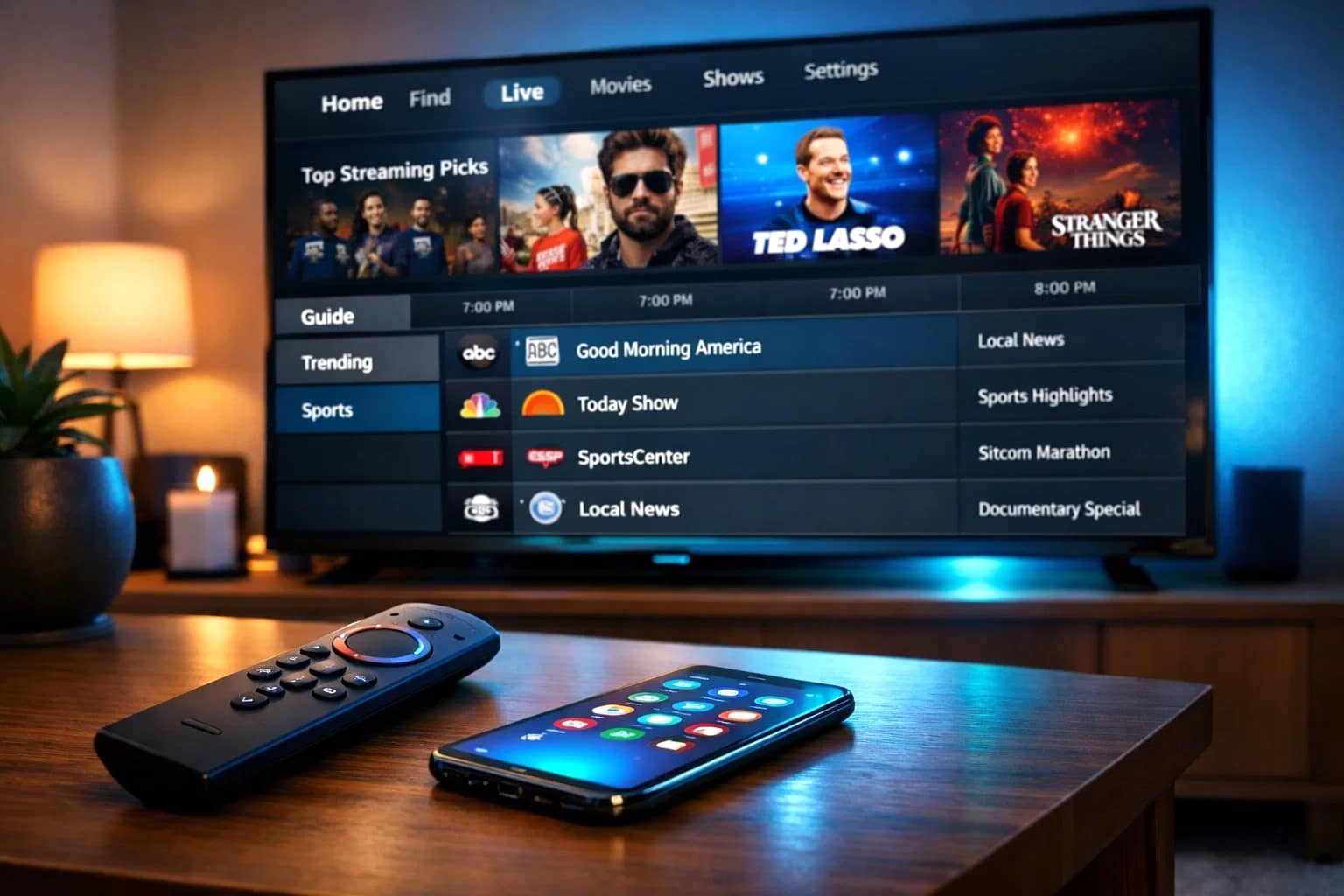
If you have ever wanted to cut the cable and watch TV through the internet, IPTV is worth knowing about. IPTV stands for Internet Protocol Television. Instead of receiving channels through a satellite dish or cable box, you stream them directly over your internet connection. Think of it like Netflix, but for live TV, sports, news, and thousands of channels from around the world.
More people are switching to IPTV (Internet Protocol Television) every year because it is flexible, affordable, and works on almost any device you already own. Whether you have a Smart TV in the living room, a Fire TV Stick plugged into an old screen, or just a phone in your pocket, IPTV streaming is accessible to everyone.
This guide walks you through the full IPTV setup process for each of these devices, step by step, in plain language. No technical background needed.
Table of Contents
What You Need Before Setting Up IPTV
Before you get started, make sure you have a few basics ready.
A stable internet connection: IPTV relies entirely on your internet speed. For standard definition (SD) channels, you need at least 10 Mbps (megabits per second) of internet speed. For HD or 4K content, aim for 25 Mbps or more. A wired Ethernet connection is always more reliable than Wi-Fi if you have the option.
An active IPTV subscription. You will need to purchase an IPTV subscription from a provider. When you sign up, they will give you either login credentials (a username and password) or an M3U playlist URL. Keep this information handy because you will need it during setup.
A compatible IPTV device works on smart TVs (Samsung, LG, and Android TV); Amazon Fire TV Stick; Android phones and tablets; iPhones and iPads; and computers. If you possess any of these devices, you are ready to proceed.
An IPTV player app. Your device does not natively stream IPTV, so you need a third-party app to do it. Popular options include IPTV Smarters Pro, TiviMate, GSE Smart IPTV, and Perfect Player. The right app depends on your device, which we will cover in each section below.
How to Set Up IPTV on Smart TVs
Samsung and LG Smart TVs
Most modern Samsung and LG TVs run their own operating systems (Tizen and webOS), which limits app availability compared to Android TV. Your best option here is using a browser-based player or finding your app in the TV’s built-in app store.
Steps:
- Turn on your Smart TV and open the app store (Samsung App Store or LG Content Store).
- Search for an IPTV app. GSE Smart IPTV and Smart IPTV are popular choices available on both platforms.
- Download and install the app.
- Open the app and look for the option to add a playlist or M3U URL.
- Enter the M3U playlist link provided by your IPTV subscription provider, or log in using your username and password.
- Wait for the channel list to load, then browse and start watching.
Android TV (Sony, Philips, TCL, Nvidia Shield)
Android TV gives you access to the Google Play Store, which opens up far more app options.
Steps:
- Go to the Google Play Store on your Android TV.
- Search for TiviMate or IPTV Smarters Pro. Both are excellent options.
- Install the app of your choice.
- Open the app and select “Add Playlist” or “Add Account.”
- Enter your M3U URL or Xtream Codes credentials from your IPTV subscription.
- The app will load your channel list. Pick a channel and start streaming.
How to Set Up IPTV on Amazon Firestick
Firestick IPTV setup is slightly different because Amazon restricts certain apps from appearing in its app store. The good news is that you can easily install apps from outside the store using a feature called sideloading.
Step 1: Allow Installation from Unknown Sources
- Go to Settings on your Fire TV Stick.
- Select My Fire TV, then tap Developer Options.
- Turn on Apps from Unknown Sources (or “Install Unknown Apps” on newer models).
Step 2: Install the Downloader App
- Go back to the home screen and open the Amazon Appstore.
- Search for “Downloader” and install it. This free app lets you install programs that are not in the Amazon store.
Step 3: Install Your IPTV App
- Open Downloader and type in the URL for the APK file of your preferred IPTV app (for example, IPTV Smarters Pro or TiviMate). You can find these official download links on the app’s website.
- Download the file and follow the on-screen prompts to install it.
Step 4: Add Your IPTV Subscription
- Open the installed IPTV app.
- Select the option to add an account or playlist.
- Enter your IPTV credentials or M3U URL provided by your subscription provider.
- Your channels will load. Select any channel, and you are live.
Also Read: How to Download and Install NetMirror App on iOS, Android, and Smart TV (2025 Guide)
How to Set Up IPTV on Mobile Devices (Android and iOS)
Android
Android makes IPTV setup simple because the Google Play Store allows IPTV apps without restriction.
Steps:
- Open the Google Play Store on your Android phone or tablet.
- Search for IPTV Smarters Pro or GSE Smart IPTV. Both are free to download.
- Install the app and open it.
- Tap “Add User” or “Add Playlist” and enter your M3U URL or login credentials from your IPTV subscription.
- Your channel list will populate. Tap any channel to start watching live TV.
iOS (iPhone and iPad)
Apple is stricter with its App Store, but there are still solid IPTV apps available.
Steps:
- Open the App Store and search for GSE Smart IPTV or IPTV Smarters Pro (both are available on iOS).
- Download and install the app.
- Open it and select the option to add a playlist via M3U URL or Xtream Codes.
- Enter the details from your IPTV subscription provider.
- Wait for the channels to load, then start streaming.
Best IPTV Apps for Different Devices
Here is a quick overview of the most popular IPTV apps and which devices they work best on:
- TiviMate — Best for Android TV and Fire TV Stick. It boasts a user-friendly interface and provides excellent support for the Electronic Program Guide (EPG). A paid premium version unlocks extra features.
- IPTV Smarters Pro — Works on Android, iOS, Fire TV Stick, and Android TV. Its simple layout makes it an excellent choice for beginners.
- GSE Smart IPTV — Available on Smart TVs, Android, and iOS. Highly customizable and supports multiple playlists.
- Perfect Player — A solid free option for Android devices and Android TV. Lightweight and easy to configure.
- Smart IPTV (SIPTV) — Popular on Samsung and LG Smart TVs. Requires a one-time activation fee after a trial period.
Tips for Smooth IPTV Streaming
Even with a good subscription, small things can make a big difference in your viewing experience.
- Use a wired connection when possible. Ethernet is faster and more stable than Wi-Fi, especially for HD streams.
- Choose a reputable IPTV provider. Quality varies a lot between services. Look for providers with uptime guarantees and responsive support.
- Keep your IPTV app updated. Developers regularly push fixes and performance improvements. Running an outdated version can cause playback issues.
- Close background apps. If your device is running other apps while streaming, it can slow things down. Close anything you do not need.
- Use a VPN if needed. Some regions restrict certain IPTV content. A VPN can help you access channels more reliably while protecting your connection.
Common IPTV Setup Problems and How to Fix Them
Buffering or Freezing
This is the most common complaint and usually comes down to internet speed or server load.
- Test your internet speed at fast.com. If it is below 25 Mbps, that may be the culprit.
- Switch from Wi-Fi to a wired connection.
- Try a different server or stream quality option within your IPTV app.
- Contact your IPTV provider to check if their servers are experiencing issues.
Playlist Not Loading
If your M3U URL or login credentials are not working:
- Double-check that you copied the URL or credentials exactly with no extra spaces.
- Confirm your subscription is still active with your provider.
- Try refreshing the playlist inside the app settings.
Login Errors
- Make sure your username and password are correct.
- Check if your subscription has expired or reached its connection limit. Most providers allow only one or two simultaneous connections.
- Reach out to your provider’s support team if the issue persists.
App Crashing
- Clear the app’s cache in your device’s settings.
- Uninstall and reinstall the app.
- Check for updates in the app store.
Conclusion
Setting up IPTV does not have to be complicated. Once you have a reliable internet connection, an active IPTV subscription, and the right app installed, you are minutes away from streaming thousands of live channels on any device you own. Whether you prefer watching on a smart TV in your living room, a Fire TV Stick in the bedroom, or your phone while traveling, the process is straightforward, and the steps are nearly the same across devices.
The freedom IPTV gives you to watch what you want, when you want, and on whatever screen you have nearby is one of the main reasons it has grown so popular. Take your time going through the steps for your specific device, and do not hesitate to revisit this guide whenever you need a refresher.
Now that you know how it all works, go ahead and explore IPTV streaming on your favorite device. You have everything you need to start watching today, and there is a wealth of content available.
